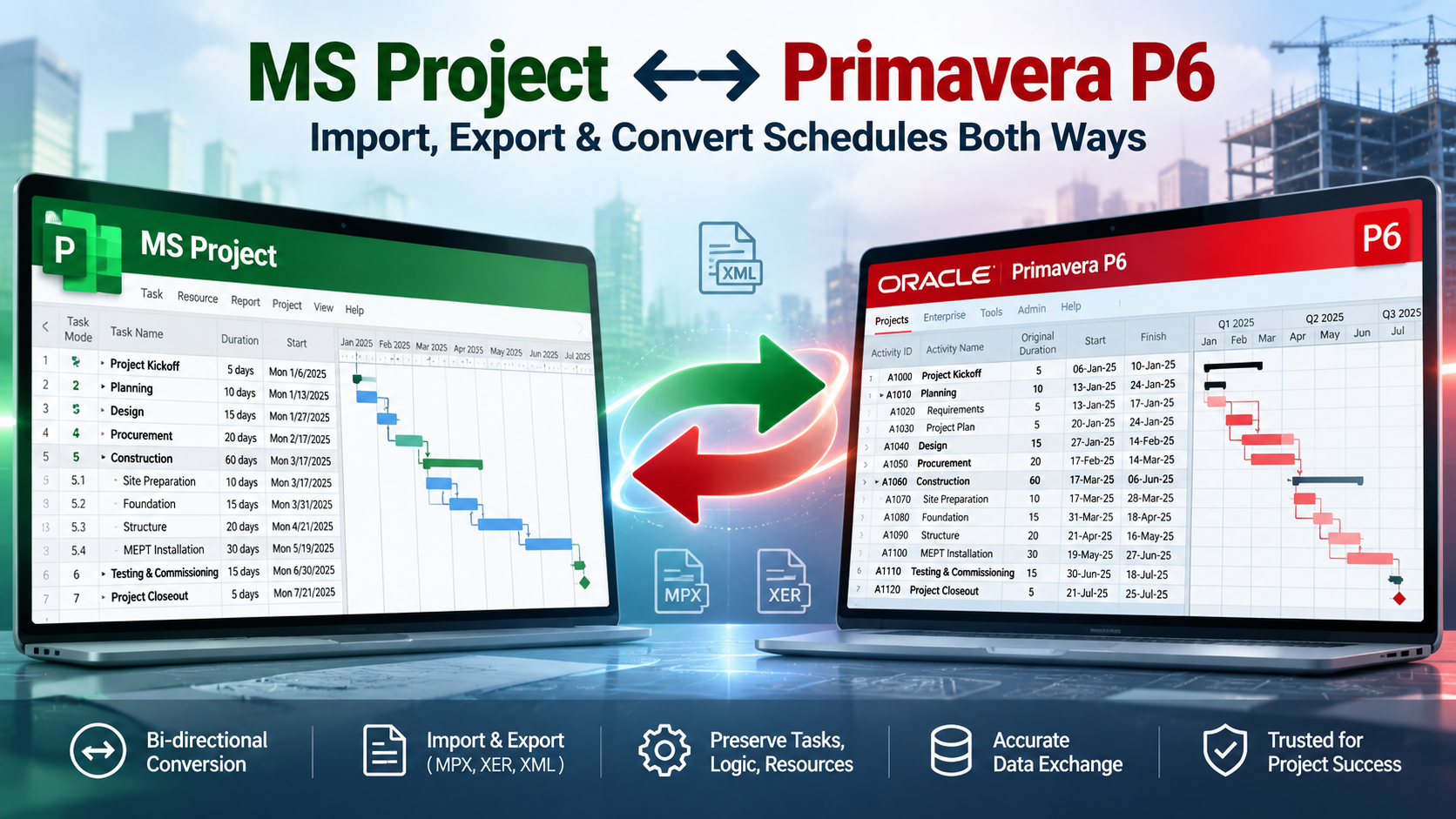
Converting MS Project Schedules to Primavera P6: 7 Differences That Change Your Dates


Same project, different logic, different dates
A contractor on a water treatment upgrade once submitted their first P6 update after converting from Microsoft Project. The client's reviewer sent it back within two days. The number of critical activities had more than doubled, three key milestones were showing negative float, and a curing sequence that had carried four days of float now had one. On site, nothing had changed. The crews were exactly where they'd been the week before.
Untangling it took the best part of two days. There was no corruption and no software bug. There were three schedule settings and one calendar that behaved differently in P6 from the way they had in MS Project. Everything the reviewer flagged traced back to those four things.
If you're moving a programme out of Microsoft Project this year — because Project Online is being switched off on 30 September 2026, or because a new contract insists on P6 — this is the article I wish that contractor had read first. It doesn't walk through menus. It explains the seven places where the two tools quietly disagree, what each disagreement does to your dates and float, and how to fix it. It sits inside the Learning Tracks programme on PMMilestone Academy and pairs with the Knowledge Pillars library.
- ◆ Both tools calculate the Critical Path Method. What differs are the assumptions underneath: learn the seven that matter and conversion stops being mysterious.
- ◆ Hours-per-day settings, typed-date constraints and the data date account for most unexplained date movement.
- ◆ P6 exposes as explicit settings things MS Project treats as built-in behaviour: float calculation, lag calendar and progress method. Choose each one on purpose.
- ◆ Some MS Project objects have no real home in P6: manually scheduled tasks, logic on summary tasks, date-range work weeks and baselines stored inside the file.
- ◆ Sometimes rebuilding beats converting. There is a decision table below to help you choose.
Same CPM engine, different assumptions
Think of two survey crews setting out the same building from the same drawings, but working to different site datums. Both are doing correct work. Their levels still won't agree until someone reconciles the datums. Microsoft Project and Primavera P6 are like that. The forward and backward pass maths is the same; the reference points aren't.
The first step is knowing where each MS Project object actually lands when it arrives in P6. Some map cleanly. Some map but need a second look. A few have nowhere to go at all. Terminology used below — total float, data date, level of effort, retained logic — is defined in the Project Controls Glossary.
- Task → Activity (Task Dependent)
- Custom field → User-defined field
- Relationship types (FS, SS, FF, SF)
- Resource assignments and units
- Summary task → WBS element
- Milestone → Start / Finish Milestone
- Constraint → Primary / secondary constraint
- Status date → Data date
- Deadline field
- Manually scheduled task
- Work weeks by date range
- Baselines stored inside the MPP
| MS Project object | Closest P6 object | Fidelity | What to watch for |
|---|---|---|---|
| Task | Activity (Task Dependent) | ● Clean | Activity IDs and naming conventions |
| Custom field | User-defined field (UDF) | ● Clean | Cost and number fields must map to UDFs of the same type |
| Summary task | WBS element | ● Review | WBS elements can't carry relationships; summary links vanish |
| Milestone (0 days) | Start or Finish Milestone | ● Review | Pick the right type; it changes float and data-date behaviour |
| Constraint | Primary or secondary constraint | ● Review | Must Start On may arrive as Start On or Mandatory Start |
| Status date | Data date | ● Review | P6 enforces it; MS Project doesn't |
| Deadline | No field; nearest is Finish On or Before | ● None | Decide deliberately rather than assuming it came across |
| Manually scheduled task | None | ● None | Convert to auto scheduled before export |
| Work weeks by date range | Calendar exceptions only | ● None | Seasonal hours need rebuilding in P6 |
| Baselines inside the MPP | Separate baseline projects | ● None | Re-establish in P6 and document |
Difference 1 — Calendars and the hours-per-day trap
MS Project keeps durations in minutes and converts them to days using a single project option, Hours per day, which defaults to 8 and has no connection to the calendars you've actually built. P6 stores durations in hours and, depending on how the administrator has set it up, can convert hours to days using each activity's own calendar.
Consider a rail station upgrade running possession-based night works: four 10-hour shifts, Monday to Thursday. The planner built the calendar correctly but never touched the Hours per day option.
Nothing on the programme moved. The number that changed was the label the planner typed, not the time the site works to. But try telling that to a reviewer scrolling through 400 activities that all seem to have lost a fifth of their duration.
Two more calendar issues deserve a mention. MS Project lets you define work weeks for date ranges — for example longer summer days and shorter winter days — while P6 calendars use a standard work week plus date-specific exceptions. And holiday periods, such as a three-week Christmas and New Year shutdown, need to be checked explicitly in P6, because a single missing exception shifts every date downstream of it.
| Item | MS Project | Primavera P6 |
|---|---|---|
| Working calendar | Mon–Thu, 10 hours per shift | Mon–Thu, 10 hours per day |
| Hours-per-day setting | 8 (default, never changed) | 10 (taken from calendar) |
| Duration as typed by the planner | 5 days | — |
| Work time actually stored | 40 hours | 40 hours |
| Duration shown on screen | 5 days | 4 days |
| Working shifts actually spanned | 4 | 4 |
| Start and finish dates | Identical | Identical |
- Record the MS Project Hours per day and Hours per week values before you export anything.
- Export durations in hours, not days, so the stored work time is unambiguous.
- Rebuild each P6 calendar and test it with a one-activity dummy project before importing the real programme.
- Re-enter seasonal work weeks as date-specific calendar exceptions in P6.
- Check every holiday and shutdown period explicitly, then state in the conversion report which display convention each side uses.
Difference 2 — Constraints, typed dates and deadlines
MS Project allows one constraint per task, plus a separate deadline field. P6 allows a primary and a secondary constraint and has no deadline field at all. Most types have a clear equivalent. Two need real care.
The subtle part is an MS Project option called Tasks will always honor their constraint dates, found under File › Options › Schedule and switched on by default. With it on, a Finish No Later Than constraint can hold a task to its date even when the predecessors can't possibly finish in time. MS Project shows the impossible date and flags negative slack. In P6, Finish On or Before only affects late dates, so the early dates follow the logic and the activity moves later. The date that appeared “achievable” in MS Project never was.
Then there are typed dates. Enter a date by hand in the Start column of an automatically scheduled task, in a project scheduled from its start date, and MS Project responds by attaching a Start No Earlier Than constraint. There's no warning dialog. On a school campus programme I looked at, roughly a third of the construction tasks had one. None of them was a hard constraint, so the usual checks didn't complain. But they locked activities in place so that early finishes upstream couldn't pull anything forward, which quietly skews both float and any later delay analysis — the sort of hidden constraint that turns up repeatedly in the Project Failure Database.
| MS Project | P6 equivalent | Behaviour to remember |
|---|---|---|
| As Soon As Possible | No constraint | Dates driven purely by logic |
| Start No Earlier Than | Start On or After | Affects early dates only |
| Finish No Earlier Than | Finish On or After | Affects early dates only |
| Start No Later Than | Start On or Before | Affects late dates only |
| Finish No Later Than | Finish On or Before | Affects late dates only |
| Must Start On / Must Finish On | Start On / Finish On, or Mandatory Start / Mandatory Finish | ● Check which arrived. In P6 only Mandatory constraints override logic |
| Deadline | No field; Finish On or Before is the nearest behaviour | ● Decide how you'll represent it before import |
| As Late As Possible | As Late As Possible | Rarely justified on construction work; review each one |
Difference 3 — Total float and the critical path
MS Project reports total slack as the smaller of start slack and finish slack. P6 lets you choose how total float is computed: start float, finish float, or the smallest of the two. P6 also lets you define critical activities by a float threshold or by the Longest Path. If the settings differ between the two tools, the critical path can look quite different even though the logic is untouched.
Here's what that looked like on the water treatment upgrade. The chart compares float before and after conversion for eight activities. The logic was identical in both files.
1. Wall pours (cure lag): 4 → 1 day. The curing lag had been entered as elapsed time in MS Project. Once it was being measured on a five-day working calendar in P6, seven days of curing took longer in real terms and float shrank. Always check how elapsed lags arrived.
2. M&E installation: 10 → 8 days. Pure display. The same 80 hours of float, shown in 8-hour days in MS Project and 10-hour days in P6.
3. Tie-in (Must Start On): −2 → 0 days. The constraint arrived as Mandatory Start. P6 holds the constrained activity at zero float and pushes the negative float onto its predecessors, where it actually belongs.
4. Commissioning: 0 → 2 days. Start float was 0 but finish float was 2. MS Project reports the smaller value; the P6 project was set to finish float.
| Setting | MS Project | P6 options | For the fidelity check |
|---|---|---|---|
| Total float calculation | Smaller of start and finish slack | Start, finish, or smallest | Smallest of start and finish |
| Critical definition | Slack ≤ threshold (default 0 days) | Float ≤ threshold, or Longest Path | Same threshold as MS Project |
| Constrained task in conflict | Negative slack shown on the task itself | Mandatory-constrained activity keeps zero float; predecessors go negative | Expect this difference and explain it |
| Open ends | Allowed | Allowed, listed in schedule log | Zero tolerance for new open ends |
Difference 4 — Relationships and lags
MS Project allows only one relationship between any two tasks. P6 allows several. That sounds minor until you look at how linear construction work gets modelled. For a trunk sewer, excavation, pipe laying and backfill should really be linked with both a start-to-start lag (the following crew can start once there's enough open trench) and a finish-to-finish lag (it can't finish until the leading crew is done). In MS Project you have to pick one, so most planners use the SS lag and hope the finish takes care of itself.
Conversion is the right moment to rebuild those as SS + FF pairs in P6. It usually lengthens the tail of the linear sequence slightly and gives a far more honest picture of float at the end of the run.
Lag needs attention too. P6 has an explicit schedule option, Calendar for scheduling relationship lag, with choices of predecessor activity calendar, successor activity calendar, 24-hour calendar or project default calendar. For something like concrete curing, my strong preference is not to hide it in a lag at all. Model curing as a visible activity on a seven-day calendar. It shows on the Gantt, it has its own float, and nobody needs to remember a setting to understand it. The same reasoning drives the method choices in the delay analysis knowledge pillar.
The finish of each trailing crew is unconstrained — float at the end of the run is overstated.
Both start and finish are tied to the leading crew — the tail lengthens and float becomes honest.
Difference 5 — Status date, data date and progress
In MS Project, the status date is informative. Work that should have started can still appear in the past. In P6 the data date is enforced: remaining work is always scheduled on or after it. Convert a file where unstarted tasks sit behind the status date and the first F9 will move them, together with everything downstream.
P6 also asks you to choose how out-of-sequence progress is handled: Retained Logic, Progress Override or Actual Dates. Retained Logic keeps the remaining duration of an out-of-sequence activity waiting for its predecessors; Progress Override lets it continue as if the logic had been satisfied. The choice can move a completion date by weeks on a heavily progressed schedule. Many specifications name the required method, so check the contract before accepting whatever default the database was set up with — and see how the same decision plays out on real programmes in the mega-project case studies.
Difference 6 — Activity types: milestones, LOE and summaries
MS Project offers tasks, summary tasks and milestones. P6 offers Task Dependent, Resource Dependent, Level of Effort, WBS Summary, Start Milestone and Finish Milestone activity types. Conversion is a good opportunity to put each activity into the type that matches how it really behaves.
| How it was modelled in MS Project | Better P6 activity type | Why it matters |
|---|---|---|
| Summary or fixed task for site management and preliminaries | Level of Effort | Stretches and shrinks with the work it spans |
| Zero-duration milestone at the start of a phase | Start Milestone | Correct float and data-date behaviour |
| Zero-duration milestone at completion | Finish Milestone | Same reason; matters for contract key dates |
| Crew-driven task on a resource calendar | Resource Dependent | Duration follows resource availability |
| Summary bar kept only for reporting | WBS Summary activity, or WBS band in layouts | Keeps reporting without inventing logic |
Difference 7 — Baselines, custom fields and IDs
An MPP file can hold up to eleven baselines inside it. In P6, a baseline is a separate copy of the project, and baselines inside an MPP won't arrive as usable P6 baselines. Re-establish them deliberately and record how. Custom fields need mapping to UDFs of matching data types, or the import errors out. And hold on to each task's original Unique ID in a dedicated UDF until handover; correspondence that quotes old task numbers doesn't disappear just because the software did.
Convert or rebuild? A decision table
Conversion is not always the right answer. Sometimes the cleanest route to a credible P6 submission is to rebuild the programme properly and use the old file only as a reference.
| Situation | Convert | Rebuild | Reasoning |
|---|---|---|---|
| Under ~300 activities, weak logic, many manual tasks | — | ✓ | Faster to rebuild than to clean |
| Mid-project, progressed, notices quote activity IDs | ✓ | — | Traceability outweighs elegance |
| Resource- and cost-loaded with earned value history | ✓ | — | Cost history is hard to recreate |
| Tender or early-design programme | — | ✓ | Use the change to build P6 properly |
| Schedule is evidence in a live dispute | ✓ | — | Preserve the native file; document everything |
| Calendars built with date-range work weeks throughout | ✓ | ✓ | Convert activities, rebuild calendars |
Common mistakes when converting MS Project to P6
Every one of these has cost a project team credibility in front of a reviewer. Patterns like them recur across the Project Failure Database and the delay claims library.
- ✘ Assuming “the dates match, so it's fine”. Dates can match while float, criticality and relationships have all changed underneath.
- ✘ Changing P6 settings and data at the same time. If you edit logic and switch the float setting in one go, you'll never know which one moved the date.
- ✘ Ignoring the honor-constraint-dates option. It explains a surprising number of “impossible” MS Project dates that move in P6.
- ✘ Forgetting holiday and shutdown exceptions. One missing exception can shift hundreds of dates by a week or more.
- ✘ Using Mandatory constraints to force P6 to match MS Project. That hides the discrepancy instead of explaining it, and reviewers treat mandatory constraints with deep suspicion.
- ✘ Leaving logic on summary tasks. It disappears on import and leaves open ends scattered through the network.
- ✘ Keeping the conversion quiet. Tell the client the programme was converted, and show them how you checked it.
Expert tips
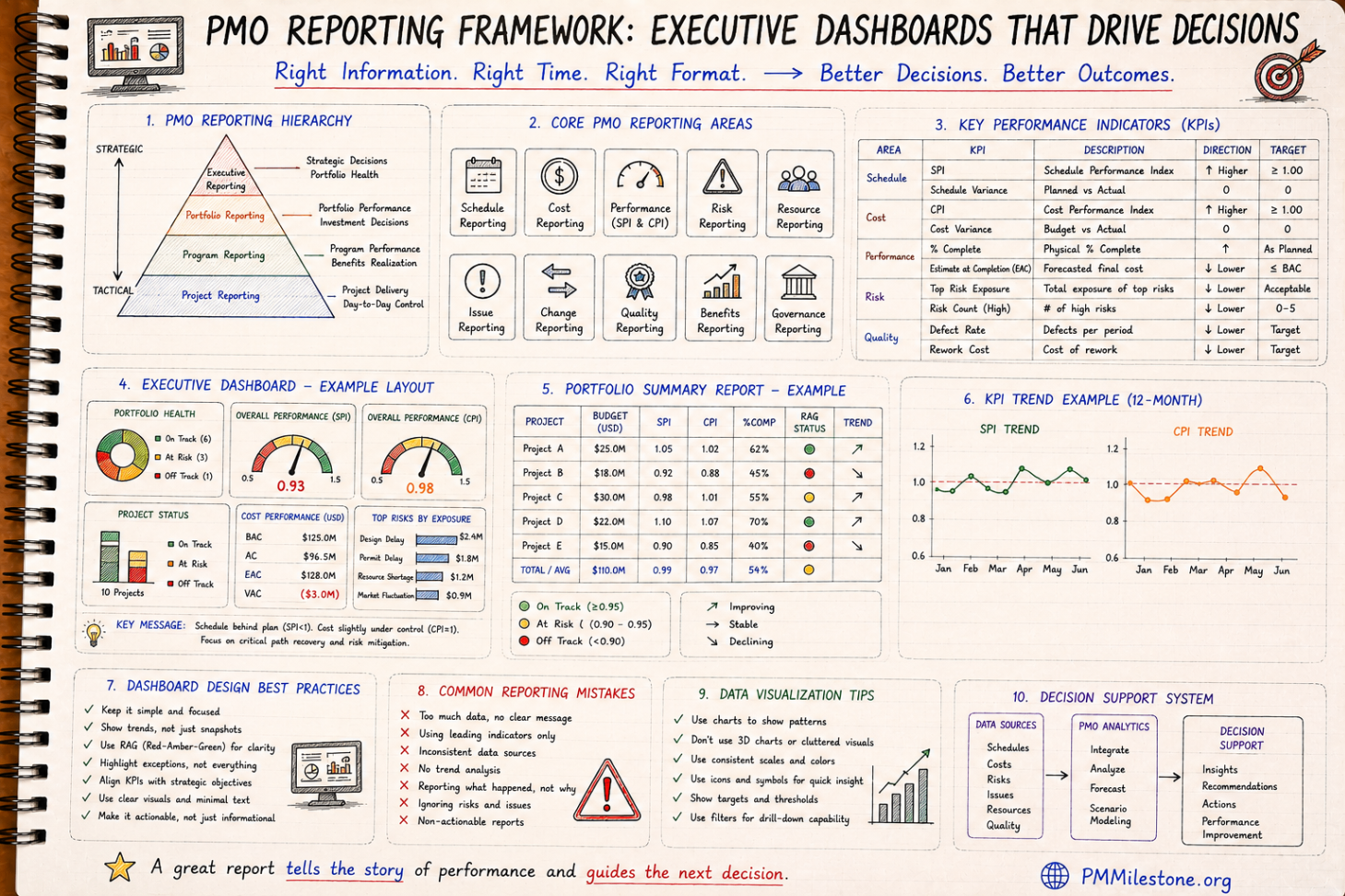
A few habits make the difference between a conversion that survives review and one that generates a hundred comments. Where the arithmetic matters, run it through the SPI calculator, the CPI calculator and the EAC calculator so the numbers in your conversion report reconcile with the numbers in your progress report.
- → Carry MS Project float across as data. Copy Total Slack into a number custom field before export and map it to a number UDF. In P6 you can then sort activities by the difference and review the biggest variances first.
- → Build a “bridge” layout in P6 showing MS Project Unique ID, original duration in hours, constraint type and date, P6 total float and the MS Project float UDF side by side.
- → Test each calendar with a one-activity dummy project before importing the real programme.
- → Run the fidelity check with matched settings first, then apply the contract settings as a separate, documented step.
- → Model curing and other waiting periods as visible activities on their own calendar rather than hiding them in lags.
- → Rebuild linear sequences as SS + FF pairs while you have the network open.
- → Attach the QA scorecard and a short conversion report to the first P6 submission, before anyone asks for them.
Lessons learned
1. A settings problem looks exactly like a performance problem. On the water treatment upgrade, the reviewer read the jump in critical activities as a project in trouble. It was a float calculation option and a lag calendar. Explain the settings before you present the dates.
2. Display differences need a paragraph, not a debate. On the night-works rail job, one worked example — 40 hours shown as 5 days in MS Project and 4 days in P6 — closed dozens of review comments in a single response.
3. Typed dates are the most common hidden issue. On the school campus programme, stripping out the hand-typed SNET constraints nobody could justify exposed a services sequence that had far less float than anyone believed. Better to learn that during conversion than during a claim.
4. Linear work deserves proper logic. Rebuilding SS + FF pairs on a trunk sewer showed the final section finishing later than the MS Project version suggested, which changed the resourcing plan for the last month.
Post-conversion QA scorecard (template)
Rate each check green, amber or red, and attach the completed scorecard to your first P6 submission.
Any red rating should stop the submission. Amber is fine as long as the conversion report explains it clearly enough that a reviewer who has never seen the MS Project file could follow the reasoning.
| # | QA check | Example result | Rating |
|---|---|---|---|
| 1 | Finish date matches MS Project at the same status/data date | Matches after reschedule of uncompleted work | ● Green |
| 2 | Activity and relationship counts reconcile | Relationships −12, all from summary tasks, rebuilt | ● Amber |
| 3 | Calendars tested with one-activity dummy projects | All five calendars match, including shutdown | ● Green |
| 4 | Hours-per-day differences identified and explained | Night-works calendar explained in report | ● Amber |
| 5 | Constraint count and types reconcile | Two Must Start On arrived as Mandatory Start | ● Amber |
| 6 | Float settings recorded (calculation method and critical definition) | Smallest of start/finish for check; contract method for submission | ● Green |
| 7 | No new open ends in schedule log | Three open ends remaining | ● Red |
| 8 | Progress method matches contract requirement | Retained Logic, as specified | ● Green |
| 9 | Baseline re-established and method documented | Baseline copy created at data date | ● Green |
| 10 | MS Project Unique ID retained in a UDF | Mapped and visible in layouts | ● Green |
Closing thoughts
Converting a schedule from MS Project to Primavera P6 is less about moving data and more about translating assumptions. Calendars, constraints, float, lags, progress, activity types and baselines each carry a small difference in meaning between the two tools. Individually they're easy to understand. Together, and unexamined, they can make a healthy project look like it's in serious trouble. Work through the seven differences, one setting at a time, and your first P6 submission will say what your site team already knows.
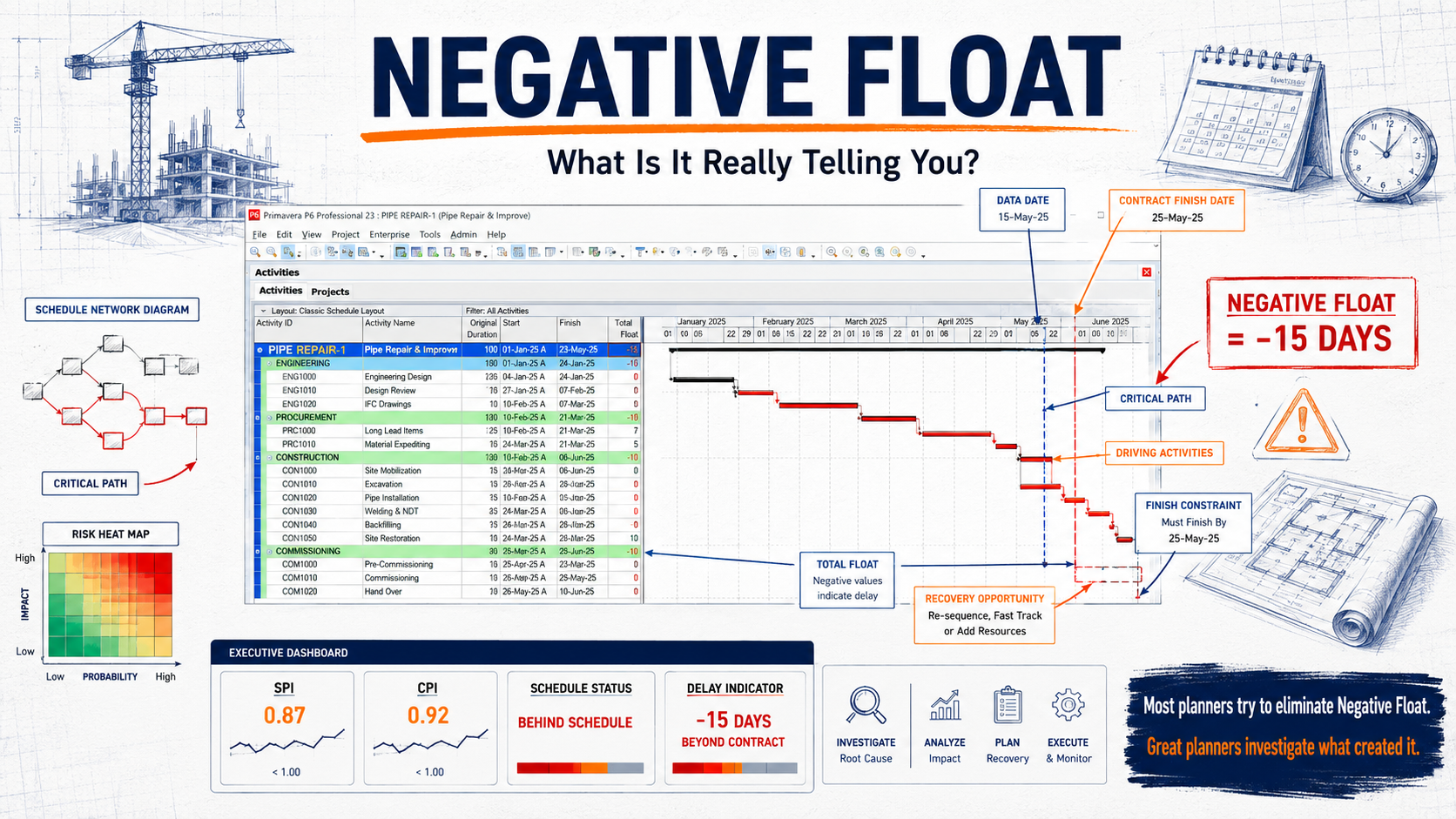
Written by Dr. Hassan Eliwa, PhD, founder of PMMilestone.org, whose peer-reviewed publications and books cover project controls, planning and forensic schedule analysis. Continue with the Primavera P6 learning track, the negative float in P6 guide, or the wider Knowledge Pillars library.
Frequently asked questions
What file format should I use to move a schedule from MS Project to P6?
Save the schedule from Project desktop as Microsoft Project XML and import that into P6 Professional. Once it is in P6 and reconciled, export an XER if your client wants the native P6 exchange format. Keep the original .mpp alongside the .xml as the contemporaneous record of what was converted.
Why does P6 show more critical activities than MS Project did?
Most often because the total float calculation or critical path definition differs, because lags are being measured on a different calendar, or because constraints arrived as a different type. Align the settings for a fidelity check first, then apply the contract settings and explain the difference in your conversion report.
Why do my durations show fewer days after import?
The MS Project Hours per day setting probably did not match your working calendar. P6 imported the same number of hours but displays them using the calendar's hours per day, so 40 hours reads as five 8-hour days in MS Project and four 10-hour days in P6. The dates themselves should not change.
Can I keep my MS Project task IDs in P6?
Yes. Copy the MS Project Unique ID into a custom text field before export and map it to a user-defined field in P6. That keeps a permanent cross-reference for correspondence and notices that quote the old numbers, even if your P6 activity IDs follow a new numbering convention.
Is there a free way to convert MPP to XER?
Without P6 itself, not really in a way you should trust for a submission. The standard route is MPP to XML in Project desktop, XML into P6, then XER out of P6. Third-party converters exist, but each one adds a mapping layer you will need to verify activity by activity.
What happens to my Project Online plans after 30 September 2026?
Microsoft has said Project Online and the data it holds will not be accessible after retirement. Pull every active plan down into Project desktop now, keep both an .mpp and an .xml version of each, and store them somewhere that does not depend on the retiring service.
Should I re-baseline after converting?
Yes, in P6, but keep the original approved MS Project baseline archived as the contractual record. Explain in the conversion report how the P6 baseline was created and how it relates to the approved one, because a baseline that appears without explanation invites challenge later.
Do I need to tell the client the schedule was converted?
You should. Disclose it, include the QA scorecard and conversion report, and explain any variances in float or criticality. Handled openly, it turns a potential credibility problem into evidence of good practice; discovered later, it undermines every update that follows.
How should concrete curing be modelled after conversion?
As a visible activity on a seven-day calendar rather than as a lag. Lags in P6 are measured on whichever calendar the schedule option names, so a curing period hidden in a lag can change length silently on import. A real activity shows on the Gantt, carries its own float and needs no setting to interpret.
Where this article connects
Curated cross-links: related Academy articles, the Knowledge Pillars this topic draws on, and the calculators referenced in the FAQs above.
Related Academy articles
Relevant Knowledge Pillars
Next steps on PMMilestone
Use these pages to deepen the topic, verify terminology, compare real cases and move from theory into applied project controls practice.
Related calculators
Open the calculators referenced in this article and run them against your own project numbers.
Float Erosion Analyzer
Track total float consumed on critical paths.
Open ScheduleDelay Impact Calculator
Estimate the financial impact of project delays.
Open ScheduleSchedule Compression Calculator
Cost per day of crashing the schedule.
Open Earned ValueSPI Calculator
Schedule Performance Index — measure schedule efficiency.
Open Earned ValueCPI Calculator
Cost Performance Index — measure cost efficiency.
Open ForecastingEAC Forecast Calculator
Estimate at Completion — forecast final project cost.
OpenOther learning tracks
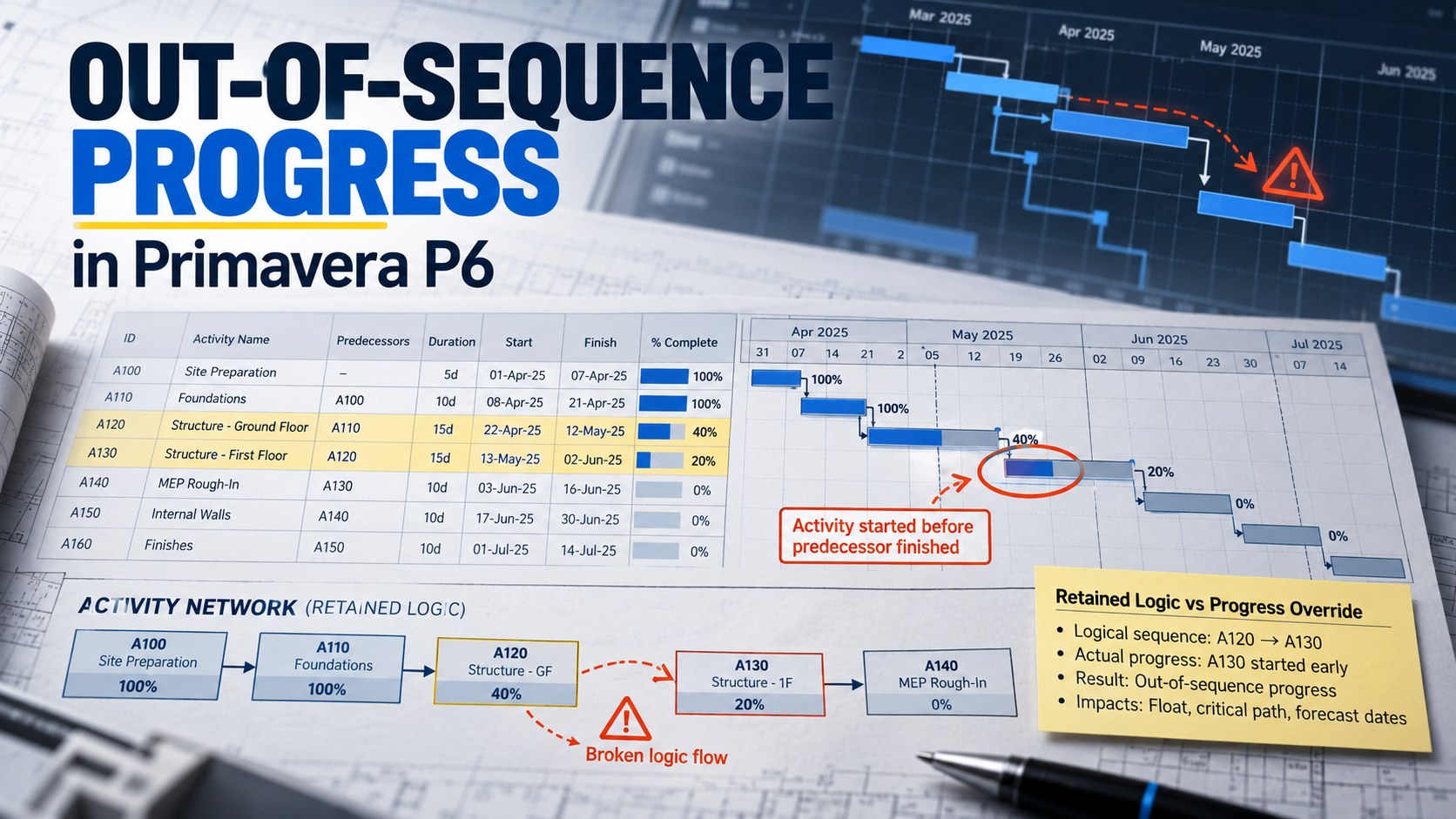
How to Fix Out-of-Sequence Activities in Primavera P6 Before They Distort Your Critical Path
Repair out-of-sequence progress with a five-step workflow, a DN600 pipeline example, scheduling-option comparisons and a monthly evidence checklist.
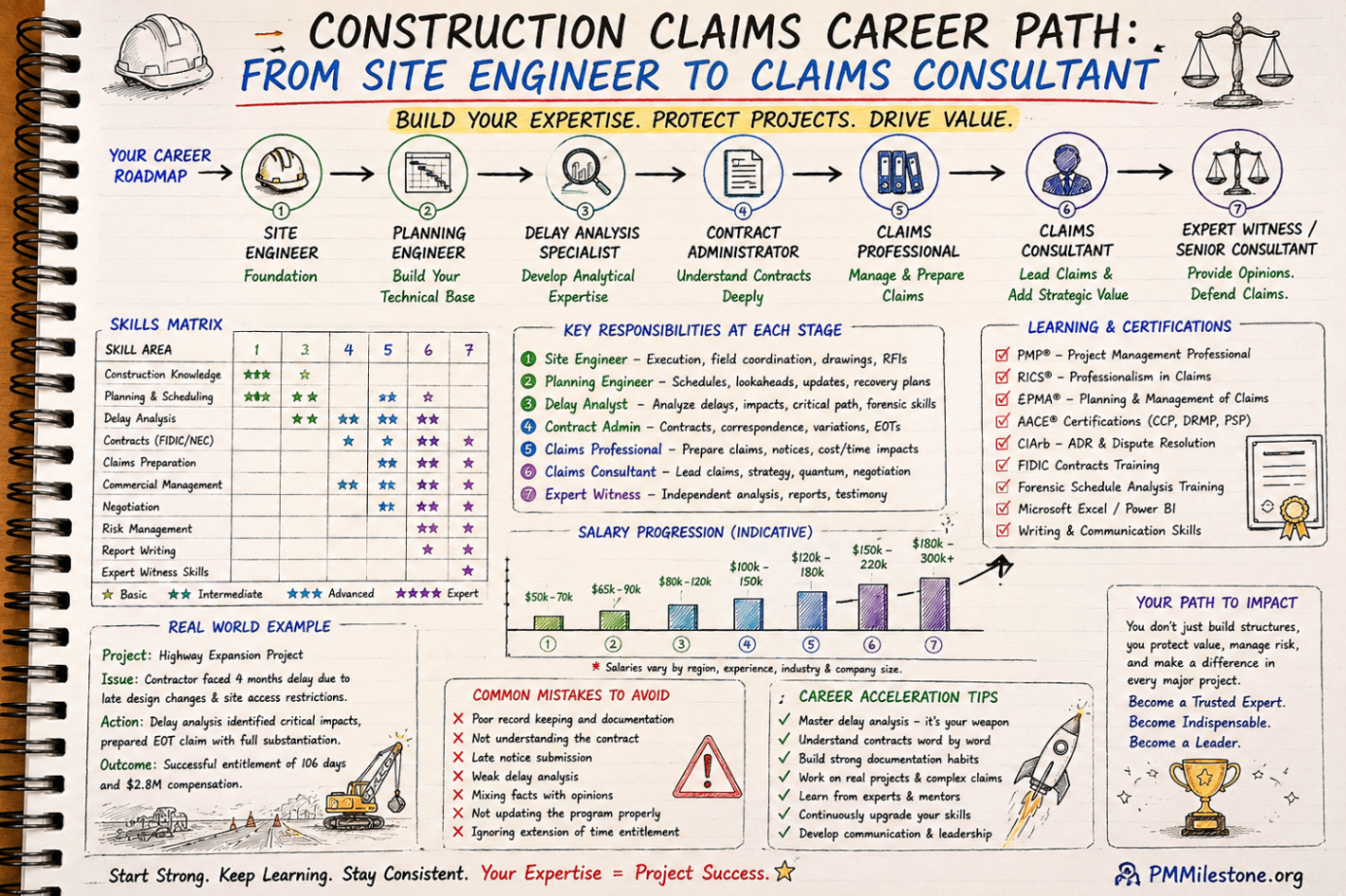
Construction Claims Career Path
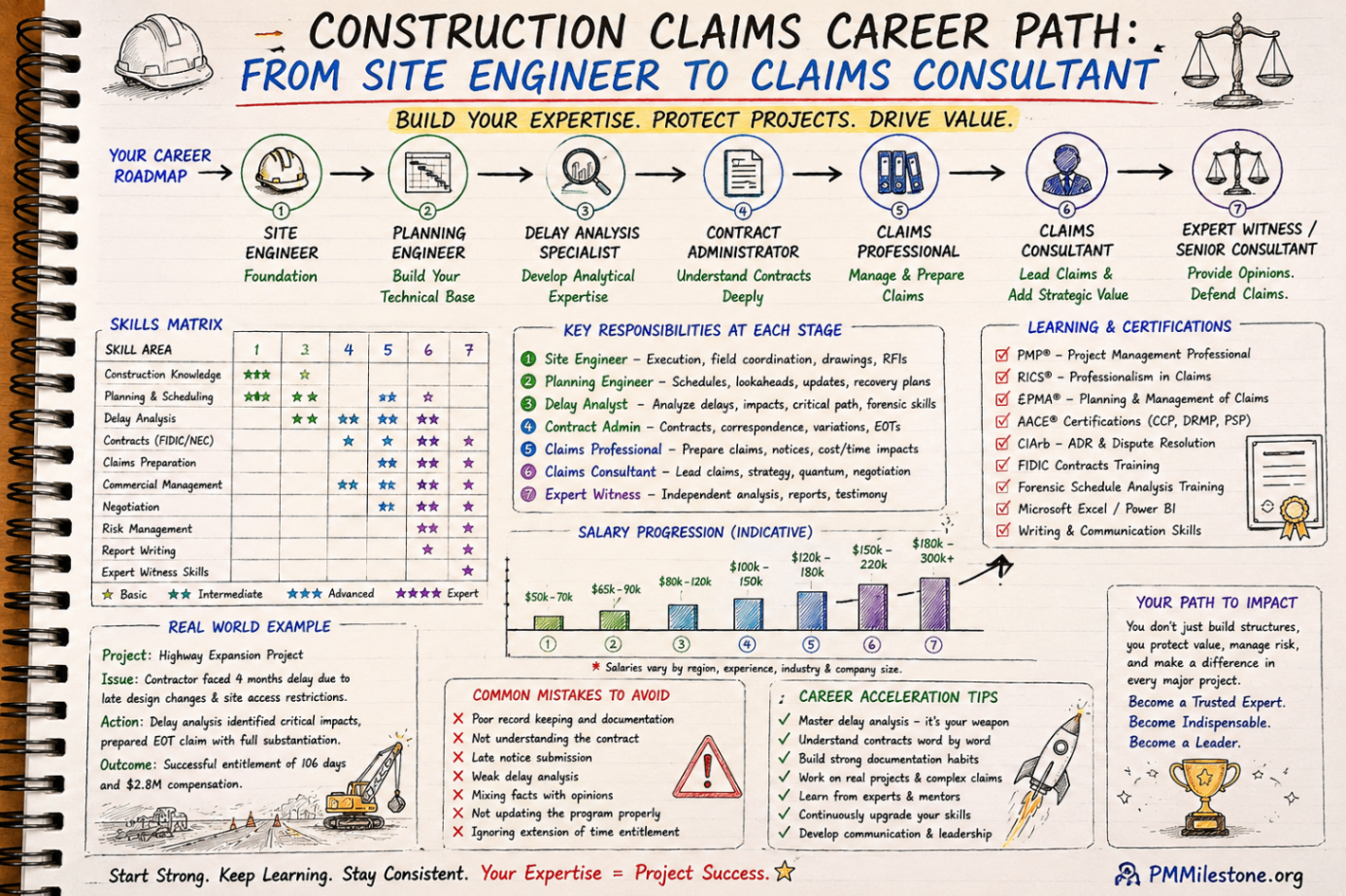
A practical roadmap for engineers moving from site delivery into planning, delay analysis, claims, commercial controls and senior claims consulting.
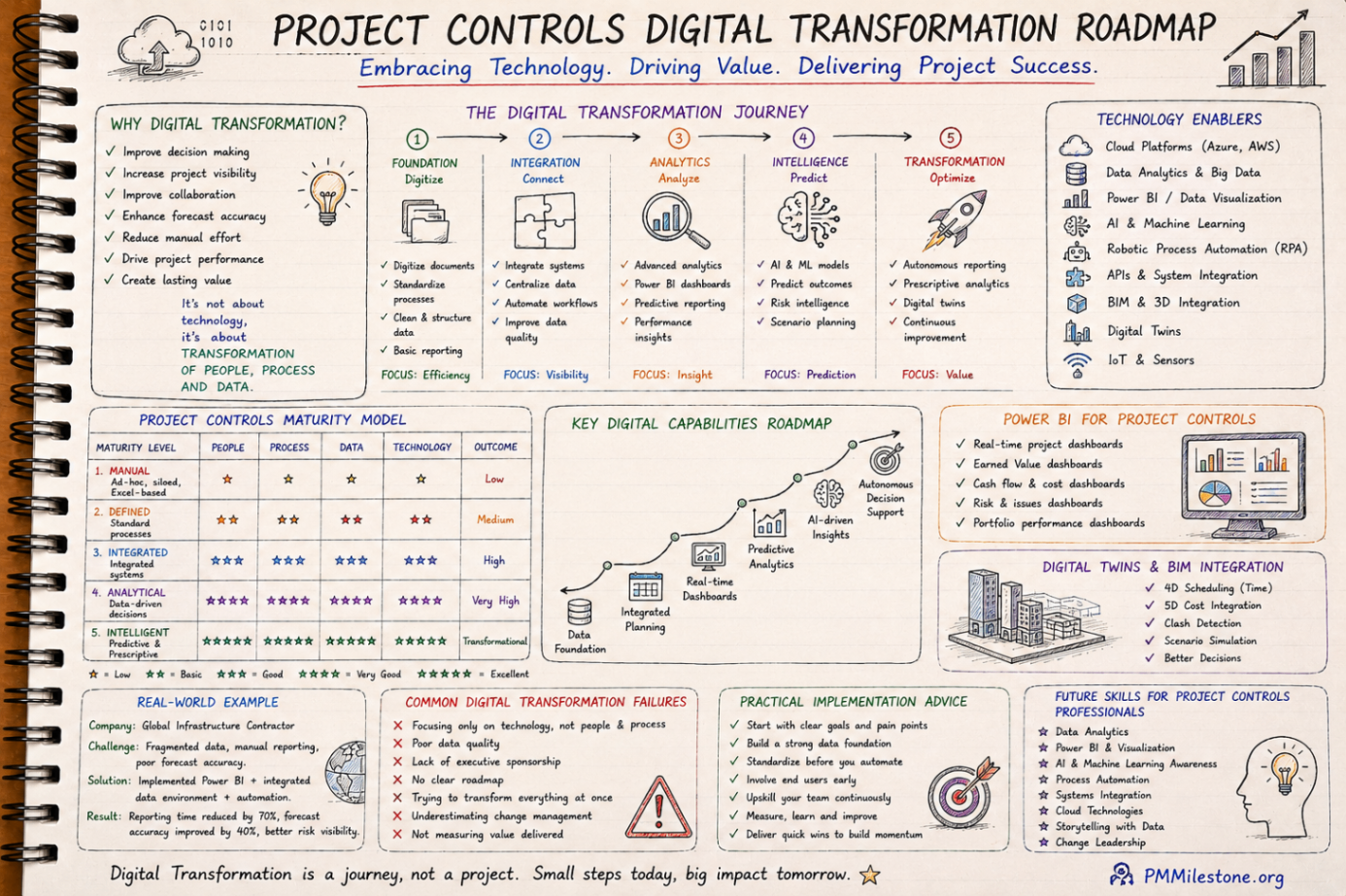
Project Controls Digital Transformation Roadmap
A future-focused guide to modern project controls through data integration, reporting automation, Power BI, AI, BIM and digital PMO capability building.