MS Project to Primavera P6 Conversion: What Breaks, What Survives, and How Experienced Schedulers Fix It

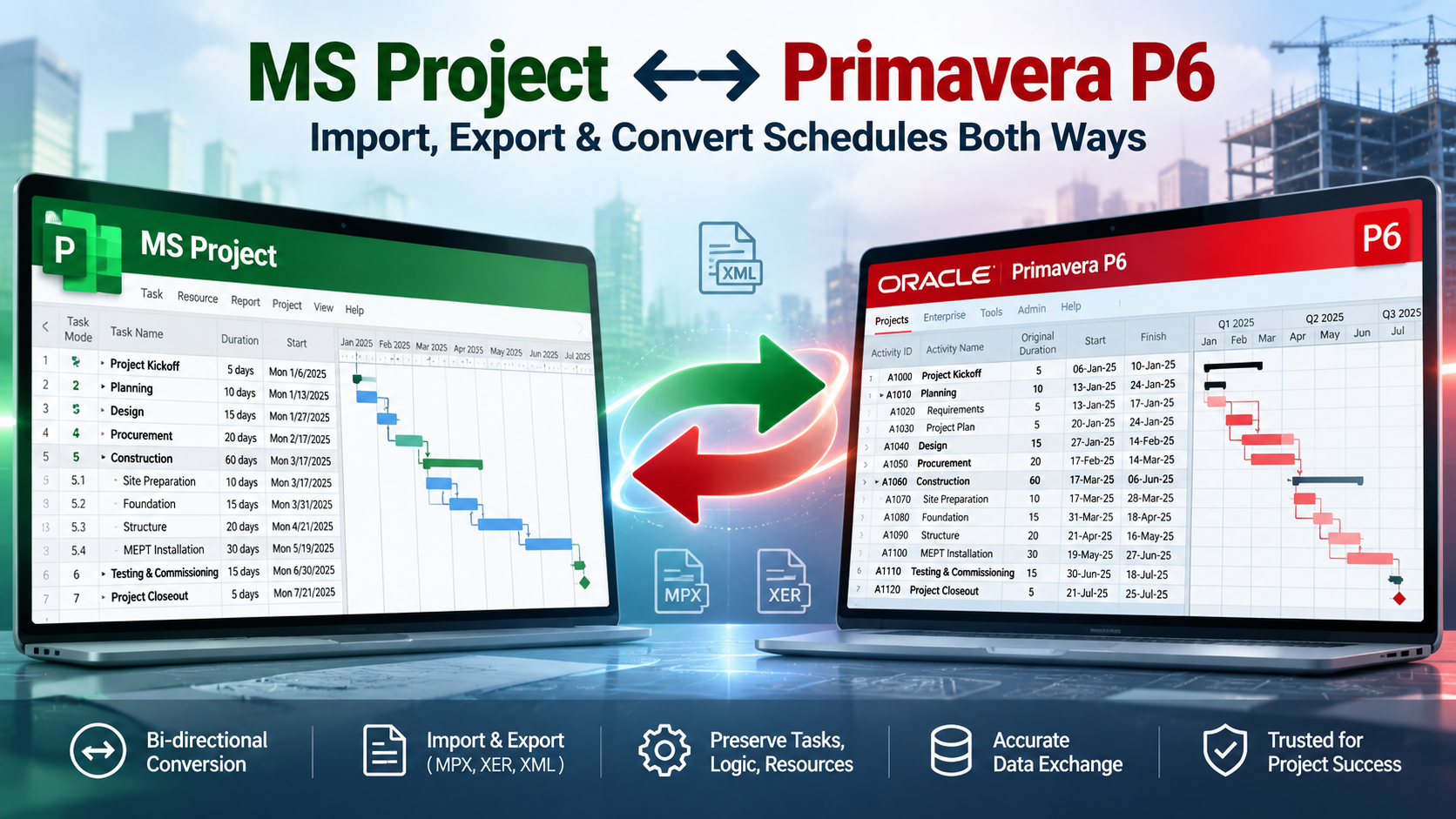
The conversion that looked perfect
The converted file opened without a single error. Same activity count, same practical completion date, same critical path running straight through the precast culvert install. The scheduler signed it off on a Friday afternoon.
Three weeks later the client’s reviewer sent it back with one question: why was the culvert install starting two days before half of the trench had been excavated?
That question sums up the whole problem with moving a schedule from Microsoft Project into Primavera P6. Conversion errors do not announce themselves. They hide inside a schedule that looks finished, and sometimes two of them cancel each other out so neatly that the finish date never moves. A matching completion date is not proof of a good conversion. It is barely evidence.
With Microsoft retiring Project Online on 30 September 2026, plenty of contractors and consultants now hold exported .mpp files and a client who wants XER submissions. This Learning Track walks through what survives that trip, what bends, what breaks, and the routine I use to prove a converted schedule can be trusted. It complements the wider Knowledge Pillars and PMMilestone Academy.
Before converting anything, decide whether you should
Not every schedule deserves a migration. Some should be archived. Some should be rebuilt, using the MS Project file as a scope list rather than a source of logic. Making that call early saves more time than any import trick.
with full reconciliation
use MSP as a scope list
PDF + XML + MPP
import as a reference
| Option | Use it when | Typical effort | Risk if chosen wrongly |
|---|---|---|---|
| Migrate | Live, contractual schedule with sound logic | Medium: about a week for 400 activities | Hidden conversion errors reach the client |
| Rebuild | Logic is weak, heavily constrained or manually scheduled | Higher up front, lower long-term | Losing the client’s accepted sequence |
| Archive | Project closed or no longer reported | Low: PDF, XML and .mpp kept together | Missing records in a later dispute |
The traffic-light map: what survives the trip
After enough conversions, you stop thinking in terms of features and start thinking in three buckets. Green items arrive intact. Amber items arrive but need checking. Red items arrive damaged or not at all.
| Schedule element | Status | What to expect |
|---|---|---|
| Activity names and WBS outline | ✓ Survives | Summary tasks become WBS nodes |
| Durations on detail tasks | ✓ Survives | Provided hours-per-day settings agree |
| FS, SS, FF and SF links between detail tasks | ✓ Survives | Relationship types carry across |
| Fixed lags | ✓ Survives | Check which calendar P6 applies to them |
| Calendars | △ Bends | Exceptions and hour settings need checking |
| Constraints | △ Bends | A single field becomes primary; behaviour can change |
| Resources and costs | △ Bends | Work and Material types need mapping |
| Custom fields and progress | △ Bends | Plan to map to codes or UDFs and re-status |
| Baselines | △ Bends | Treat as reference only; re-baseline in P6 |
| Links on summary tasks | ✕ Breaks | P6 WBS nodes cannot carry logic |
| Percentage lags | ✕ Breaks | Converted to a fixed number and frozen |
| Elapsed durations | ✕ Breaks | Calculated against working time |
| Deadlines and manual tasks | ✕ Breaks | No direct equivalent in P6 |
Five failure points—and how experienced schedulers fix them
1. Percentage lags become frozen numbers. MS Project lets you write a lag as a percentage of the predecessor’s duration. A planner might link culvert installation to excavation as Start-to-Start plus 50%, meaning “start laying units once half the trench is open.” P6 only stores lags in time units. On import, 50% of a 10-day excavation becomes a fixed five-day lag. If excavation is re-estimated to 14 days, MS Project would move installation to day seven; P6 keeps it at day five. Review every converted percentage lag whenever its predecessor duration changes.
2. Logic on summary tasks disappears. In MS Project it is common, if not good practice, to link a whole summary such as “Civil works” to the next phase. P6’s WBS cannot hold that link. Before export, move every summary link onto a detail activity or a start or finish milestone inside the summary. Then compare relationship counts in both tools.
3. Elapsed durations shrink or stretch. Seven calendar days of concrete curing is a physical fact, not a working-time estimate. P6 has no elapsed-duration type. Unless the activity receives a seven-day calendar, seven working days on a five-day calendar becomes nine calendar days. Create dedicated calendars for cures, holds and tests, assign them after import, and verify their dates.
4. Constraints change shape and deadlines lose their home. MS Project stores one constraint plus a separate deadline. P6 offers primary and secondary constraints but no deadline field. List every non-ASAP constraint before export, confirm how each arrived, and deliberately rebuild deadlines—usually as Finish On or Before on a contract milestone.
5. Progress is measured from a different reference point. MS Project reports against a status date; P6 calculates from a data date and applies Retained Logic, Progress Override or Actual Dates. Set the P6 data date to the MS Project status date before scheduling, select the rule required by the contract, and record the choice in the conversion note.
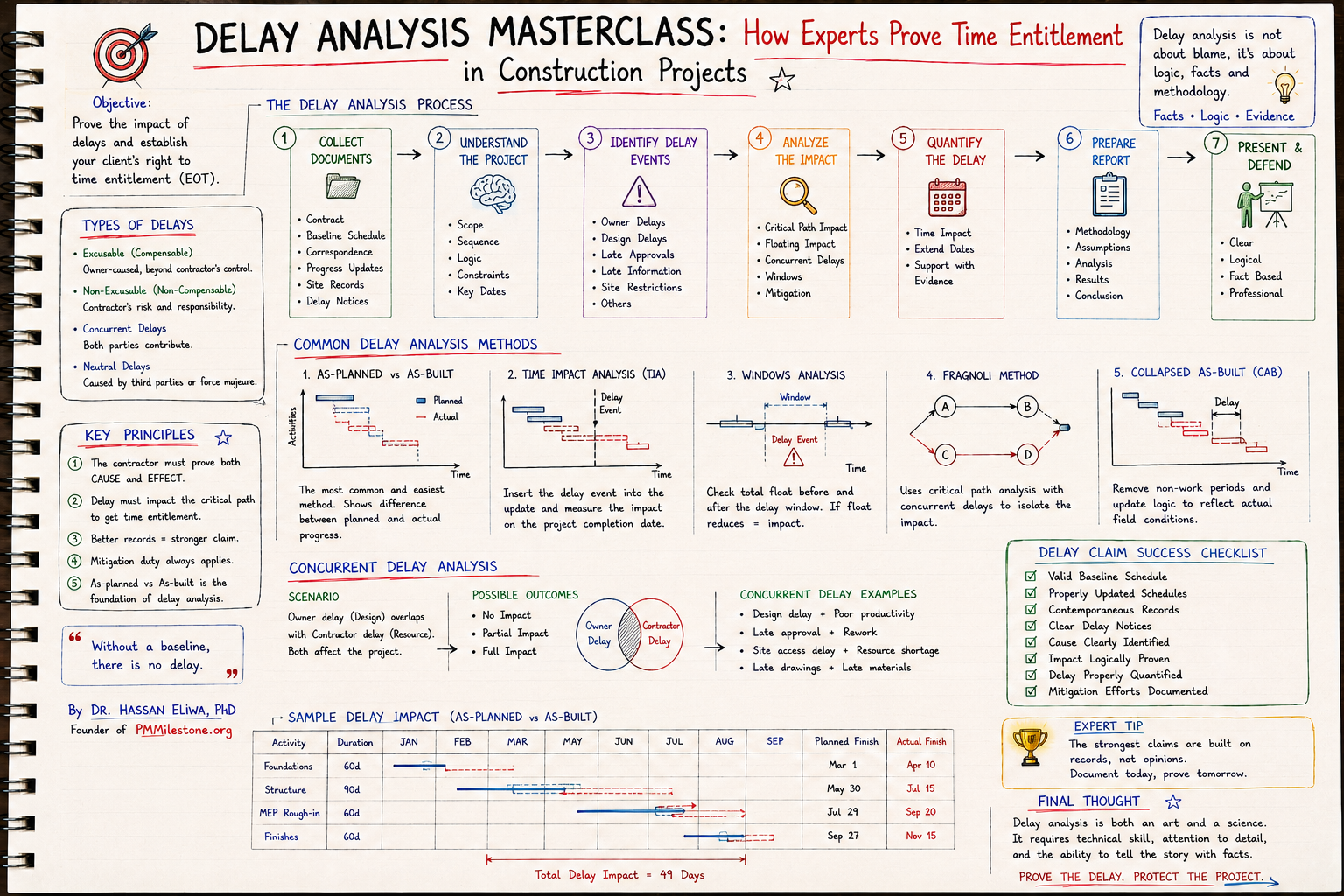
These issues matter most when a programme later supports delay analysis and an extension-of-time claim. The Project Controls Glossary defines the scheduling terms used throughout this guide.
Worked example: the culvert that hid two errors
The stormwater culvert upgrade from the introduction carried a percentage lag on installation and an elapsed-duration cure on the headwall. After conversion, excavation was re-estimated in P6 from 10 to 14 days.
| Activity | MS Project (as intended) | P6 after conversion | Effect |
|---|---|---|---|
| Precast culvert install | Starts after 7 of 14 excavation days | Starts after 5 days (frozen lag) | ✕ 2 days early, physically impossible |
| Concrete cure | 7 calendar days | 7 working days (9 calendar) | ✕ 2 days too long |
| Practical completion | Same date | Same date | △ Errors cancel out |
One error made the schedule optimistic, the other made it pessimistic, and the completion date landed in exactly the same place. A reviewer who checked only the finish date would have passed it. The client’s reviewer caught it because they checked whether the sequence made physical sense—which is precisely the check a conversion should never leave to the client.
Where the time really goes
The import itself is a rounding error. Most effort sits in two places: cleaning the source file before export and reconciling the result afterwards. If someone quotes half a day to “convert” a live contract schedule, they are quoting for the import button and nothing else.
A ten-point validation routine for converted schedules
Once reconciliation counts agree, run a structural health check. These thresholds follow the widely used DCMA 14-point assessment. Use the Float Erosion Analyzer and Delay Impact Calculator to investigate material changes rather than accepting a matching finish date.
| # | Check | Target | Why it matters after conversion |
|---|---|---|---|
| 1 | Missing logic | < 5% of activities | Catches dropped summary links |
| 2 | Leads (negative lags) | 0 | Some converted lags arrive negative |
| 3 | Lags | < 5% of relationships | Highlights frozen percentage lags |
| 4 | Finish-to-Start share | ≥ 90% of relationships | Confirms the logic is readable |
| 5 | Hard constraints | < 5% of activities | Flags constraints that changed type |
| 6 | High float (> 44 working days) | < 5% of activities | Finds phantom float from open ends |
| 7 | Negative float | 0, or explained | Shows constraints fighting the logic |
| 8 | High duration (> 44 working days) | < 5% of activities | Exposes elapsed-to-working conversions |
| 9 | Invalid dates | 0 | Finds actuals after the data date or forecasts before it |
| 10 | Critical path test | Path responds to a delay | Proves the path is continuous |
Mistakes I see repeatedly
✕ Treating conversion as an IT task. Whoever converts the schedule must understand the construction sequence well enough to notice when it stops making sense.
✕ Converting the wrong version. Agree in writing whether you are converting the accepted baseline, the latest update, or both.
✕ Discarding the source XML. Keep the exact file you imported. Without it you cannot prove what the conversion changed.
✕ Leaving custom fields behind. Area, trade and subcontractor codes in MS Project text fields should become P6 activity codes or UDFs, or your filters and layouts stop working.
✕ Saying nothing to the client. A converted schedule submitted without explanation looks like a schedule that changed for no reason.
The consequences of weak schedule governance are visible in the Mega Project Case Studies and the Project Failure Database.
Expert tips
Write a conversion transmittal. Submit a one-page note with the first converted schedule: source file name and date, P6 version and patch, schedule options used, every percentage lag converted, every calendar created, and every difference you could not eliminate. It turns a potential dispute into a documented decision.
Give converted lags a marker. Put a code such as “LAG-CONV” on every activity whose lag came from a percentage. A single filter then tells you which links to review whenever durations change.
Check your P6 patch. XML import behaviour has varied between P6 Professional releases, including at least one patch that imported activities without their relationships. Record the version and patch level in your transmittal.
Key takeaways
1. Decide first: migrate, rebuild or archive. Not every schedule earns a conversion.
2. Summary-task links, percentage lags, elapsed durations, deadlines and manual tasks are the five red items. Hunt them before export.
3. A matching finish date proves nothing. Check sequence on the critical and near-critical paths.
4. Most of the effort is clean-up and reconciliation, not the import.
5. Validate against DCMA-style checks and document every decision in a transmittal.
What should a conversion transmittal include?
Include the source file and date, P6 version and patch, schedule options, converted lags, new calendars, constraint changes, and any differences you accepted—with the reason for each.
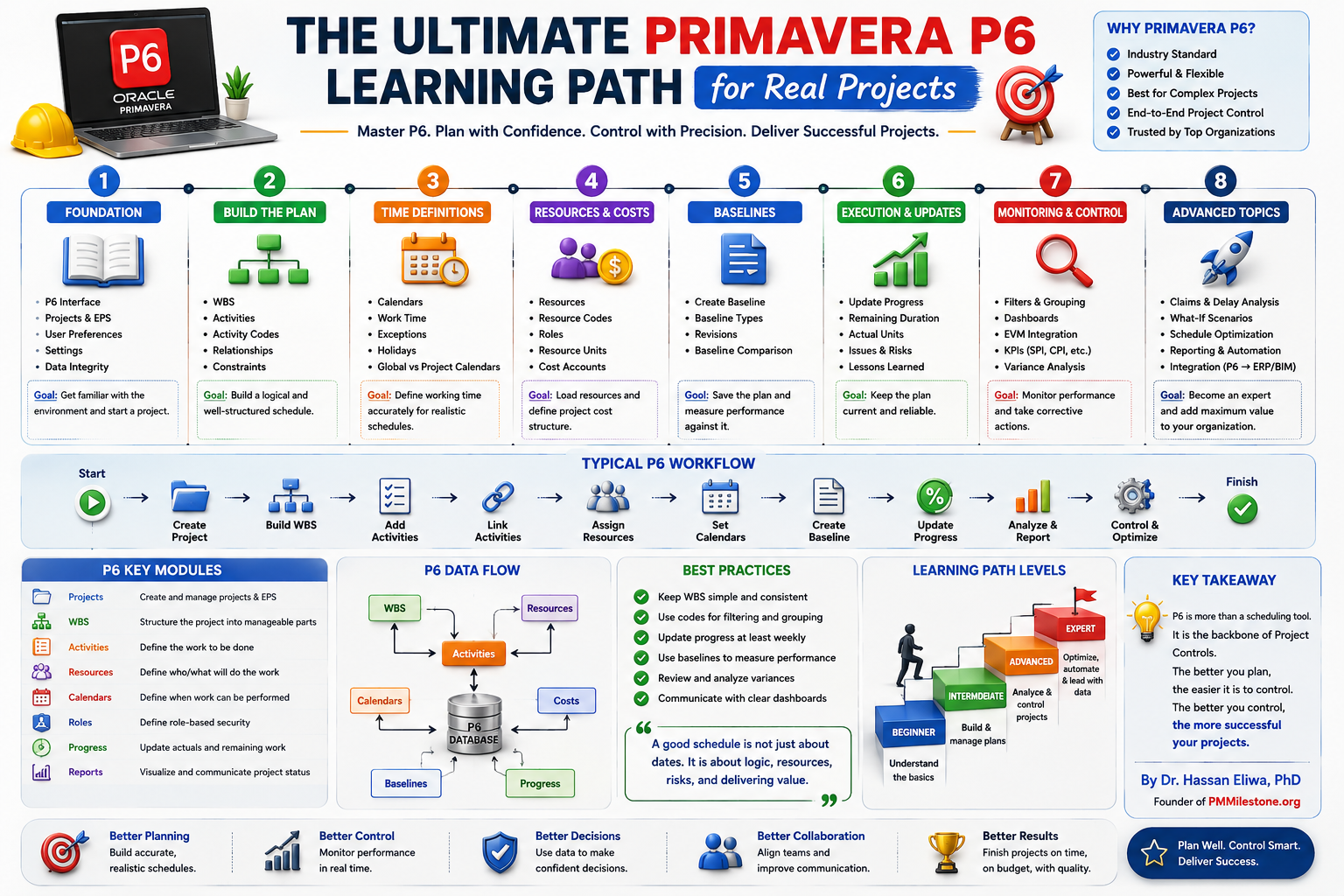
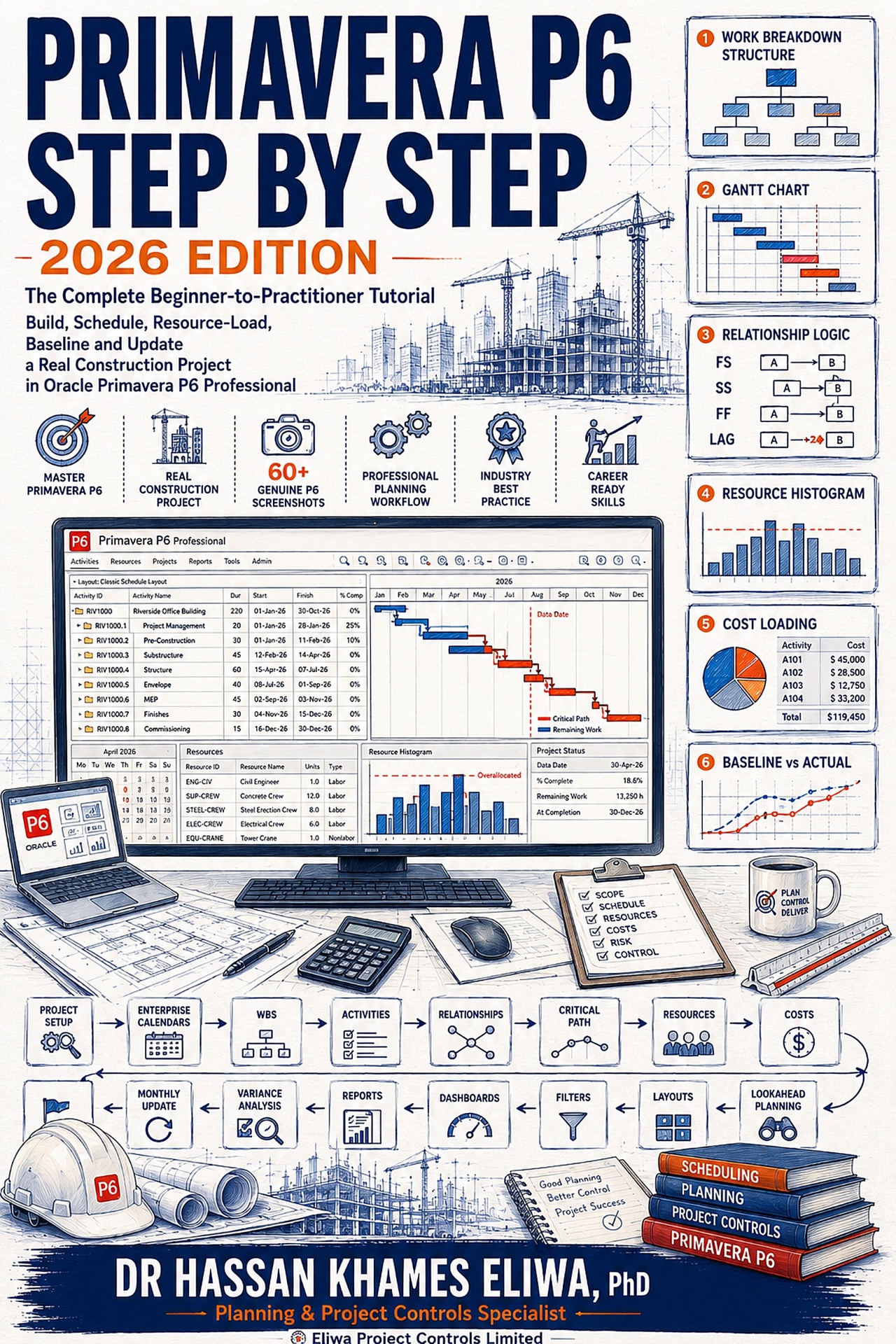
For further professional context, review Dr. Hassan Eliwa’s publications, Founder page and the About PMMilestone.org page. Continue with the seven differences that change your dates and the Primavera P6 learning guide.
Frequently asked questions
What is the most reliable way to convert MS Project to Primavera P6?
Clean the schedule in MS Project, save it as XML, import it into P6 Professional as a new project, set the data date and schedule options, then reconcile against counts taken before export. Third-party converters can help with volume, but they do not remove the need to reconcile.
Why does P6 show a different critical path from MS Project?
Usually because of float settings, dropped summary links, or calendars applied differently to lags. Check how P6 computes total float and whether critical activities are defined by total float or by longest path.
Does Primavera P6 support percentage lags?
No. P6 stores lags in time units only. A percentage lag is converted once on import and never recalculates, so it must be reviewed manually whenever its predecessor duration changes.
Can I bring MS Project baselines into P6?
Treat imported baseline data as reference only. The safer approach is to reconcile the converted schedule, gain acceptance, and then create a fresh baseline in P6 while retaining the source record.
What happens to MS Project custom fields?
Text and number fields can be carried into P6 user-defined fields or used to create activity codes, but this needs planning. Decide the mapping before import so filters, groupings and layouts work from the first submission.
Is a third-party conversion tool worth buying?
If you convert schedules regularly, often. Good tools reduce manual mapping and handle some data P6's own importer drops. None can decide what your construction logic was supposed to mean, so reconciliation remains your responsibility.
What should a conversion transmittal include?
Include the source file and date, P6 version and patch, schedule options, converted lags, new calendars, constraint changes, and every accepted difference with the reason for accepting it.
Where this article connects
Curated cross-links: related Academy articles, the Knowledge Pillars this topic draws on, and the calculators referenced in the FAQs above.
Related Academy articles
Relevant Knowledge Pillars
Next steps on PMMilestone
Use these pages to deepen the topic, verify terminology, compare real cases and move from theory into applied project controls practice.
Related calculators
Open the calculators referenced in this article and run them against your own project numbers.
Float Erosion Analyzer
Track total float consumed on critical paths.
Open ScheduleDelay Impact Calculator
Estimate the financial impact of project delays.
Open ScheduleSchedule Compression Calculator
Cost per day of crashing the schedule.
Open Earned ValueSPI Calculator
Schedule Performance Index — measure schedule efficiency.
Open ScheduleEarned Schedule Calculator
Time-based schedule performance (SPI(t)).
OpenOther learning tracks
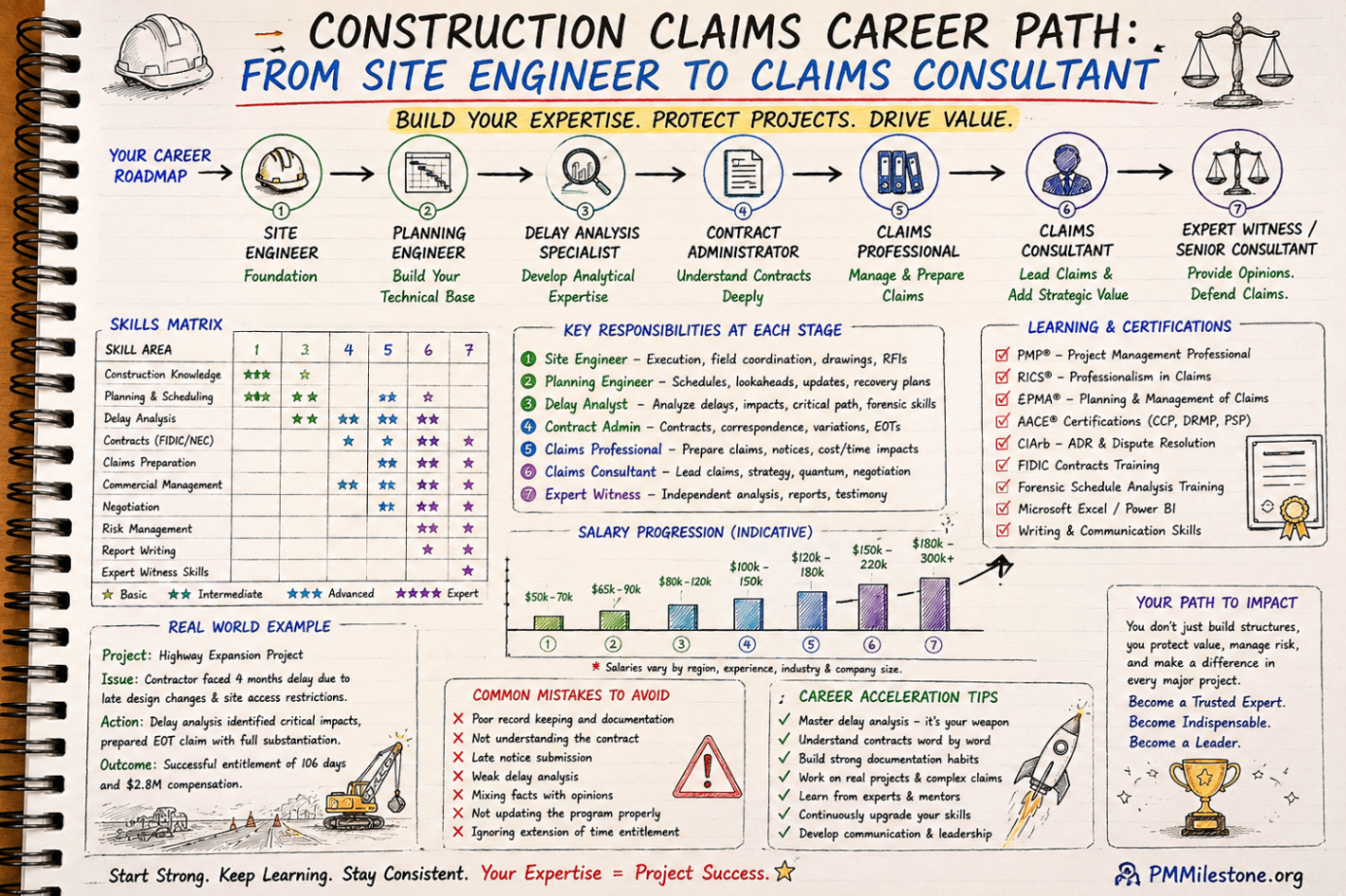
Construction Claims Career Path
A practical roadmap for engineers moving from site delivery into planning, delay analysis, claims, commercial controls and senior claims consulting.
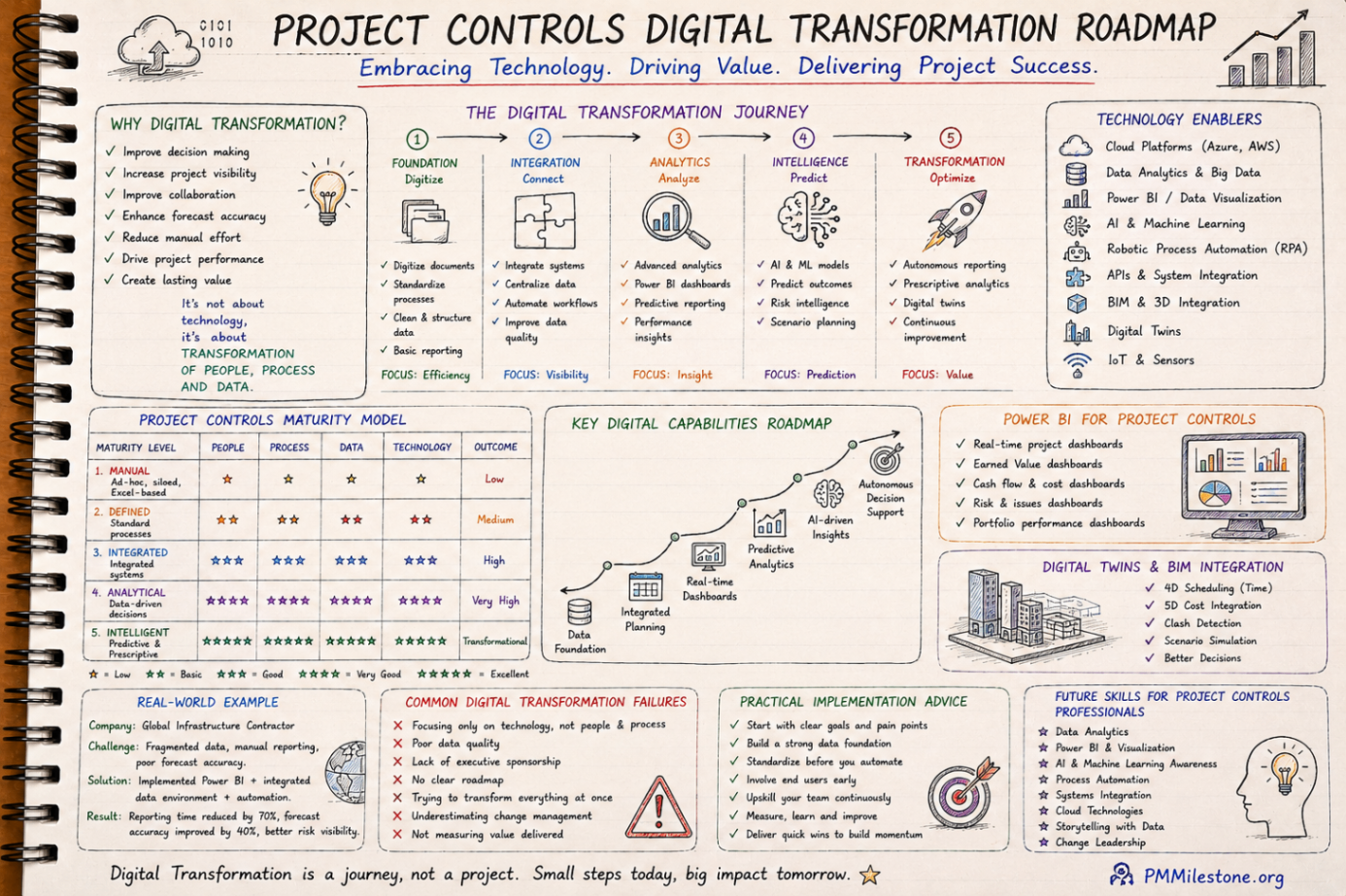
Project Controls Digital Transformation Roadmap
A future-focused guide to modern project controls through data integration, reporting automation, Power BI, AI, BIM and digital PMO capability building.
Project Controls Fundamentals
Scope, schedule, cost, risk, quality and reporting — the six disciplines that hold every successful capital project together, taught from first principles.